Edit objects
Edit the objects of a PDF page
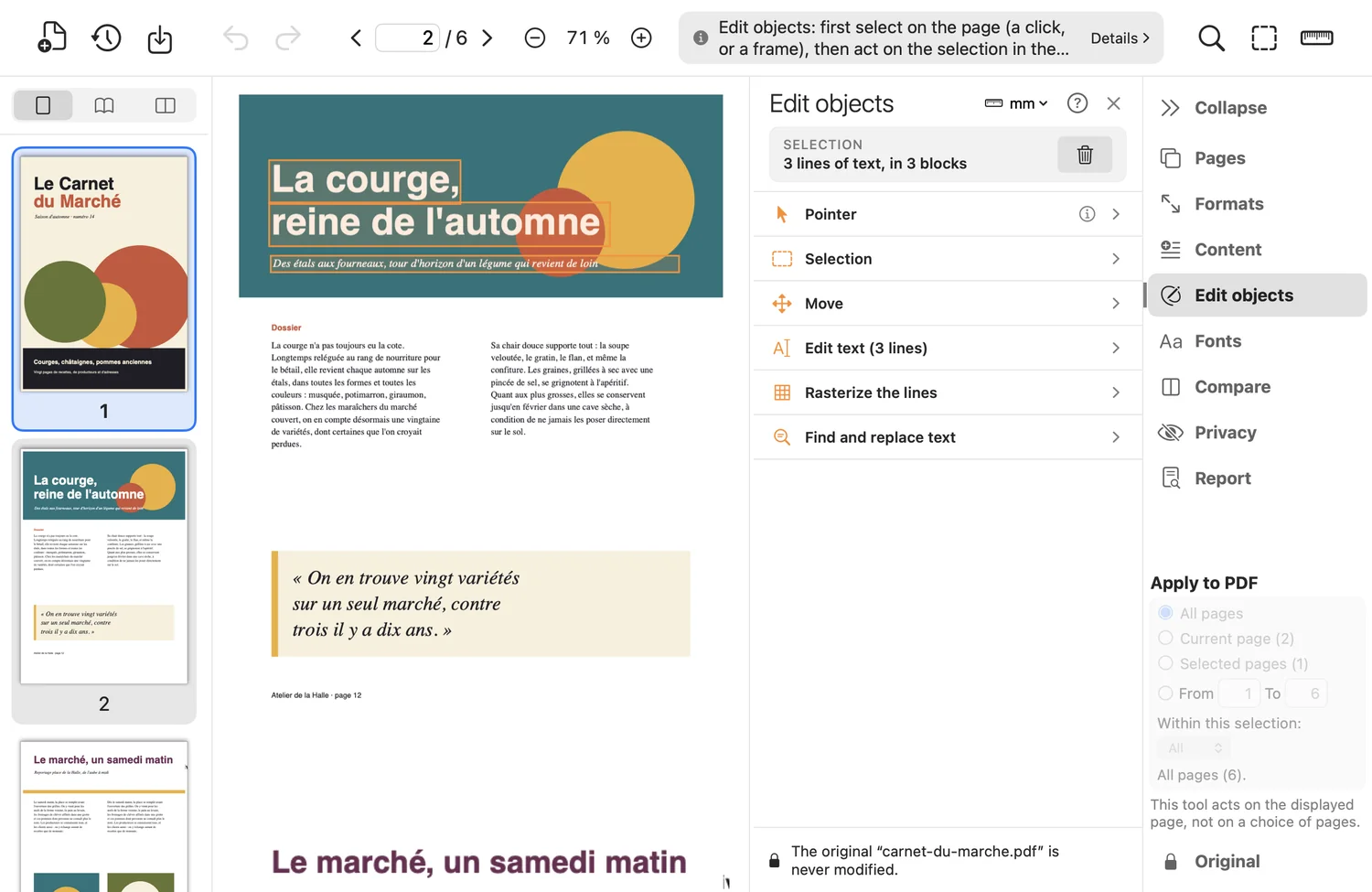
A last-minute typo, a logo to nudge, a background to send behind: select the object on the page and act, without touching the rest.
What the tool does
- Select with a click or a frame; in “Whole objects” or “Text lines” mode.
- Move with the mouse, by a typed offset or with the arrow keys (step adjustable in Settings).
- Edit text of one line, or of several lines in an editor, with reflow if a single font; find and replace.
- Position and size, rotate, skew, flip, scale; appearance (CMYK, RGB, gray), fill and stroke; copy and paste attributes; ungroup.
- Object order: front, forward, backward, back, without changing the look; rasterize to replace with an image.
- Create a rectangle, an ellipse, a line, or place a PDF.
Good to know
- Each edit creates a version: “Undo” reverts it.
- Text whose font has an unknown encoding cannot be edited; only characters already present in the embedded font can be used. The “Fonts” page offers a way out.
Where to find it in the app : Edit objects tab